 CaptureXRecCaptureXRec
Steps that stay in order
Insert a step at position three and everything after it renumbers on its own — no hunting down every callout after it to bump the number by hand.
A reference page too long to fit one screen becomes a single continuous image instead of a stack of screenshots that don’t quite line up when pasted into a doc.
Turn on the microphone to talk through what's happening, add the camera if the lesson wants a face, and pause mid-recording between steps without ending the take and losing what's already captured — resume and the recording keeps going as one file.
The take from three revisions ago is found by searching the words that were on screen when you recorded it — not by scrubbing through a library of near-identical clips.
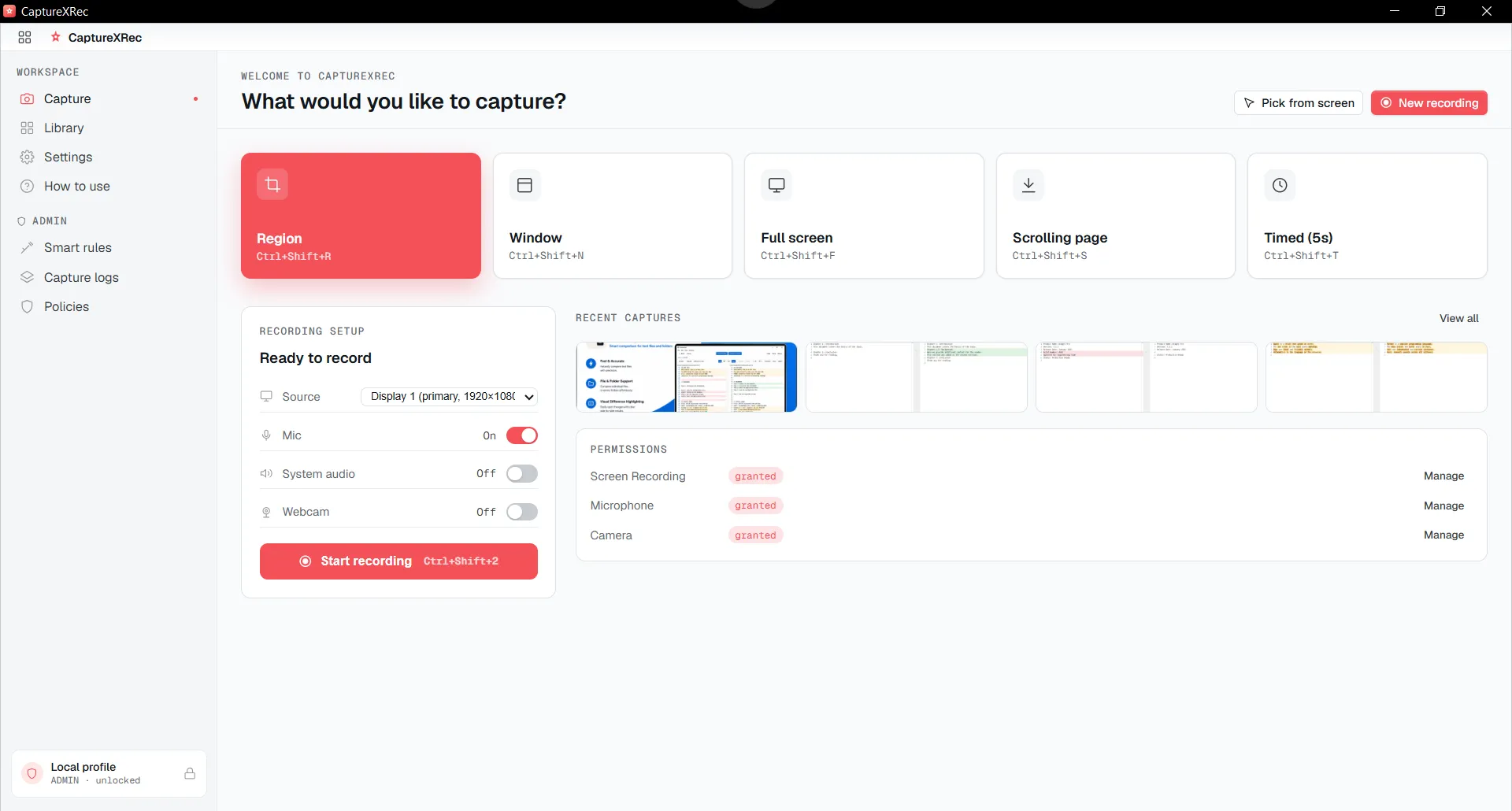
Capture each step as it happens, including a long reference page as a single image instead of several that don’t line up.
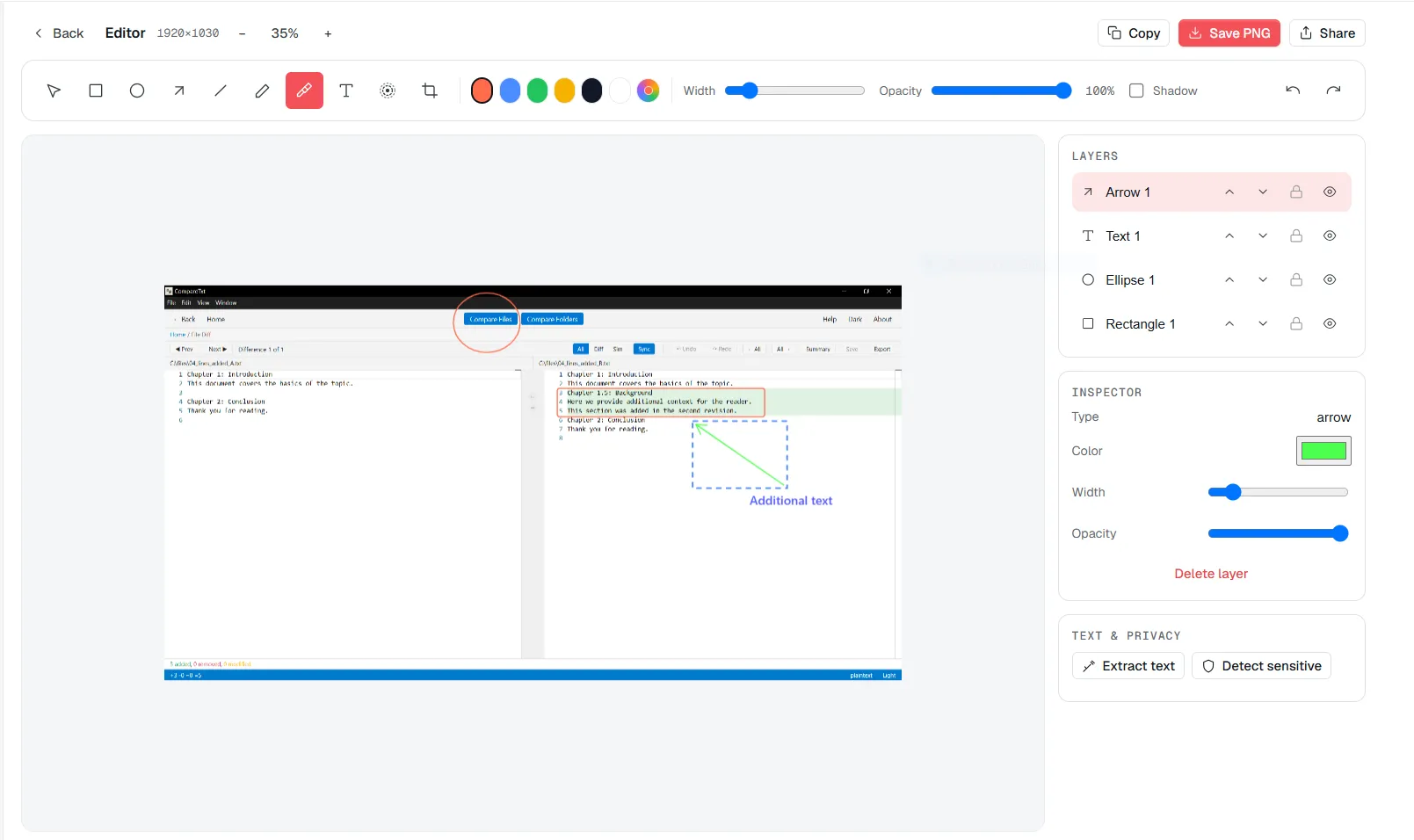
Mark up what a reader should do next with callouts that keep their own order as the walkthrough changes.
Take a screenshot for a quick step, or a scrolling capture when the reference is a whole page rather than a single screen.
Drop numbered callouts on the parts that matter — insert or reorder one and the rest renumber automatically.
Press record, narrate over the screen, and if you need a beat between steps, pause and resume without a hard cut — the cursor stays highlighted throughout so a reader can follow exactly where you click.
Search the library later using the exact text that was on screen during the take, not just a filename or a date.
Supported on
Windows 10 (1809+) · Windows 11 · x64 · ARM64
No — auto-arranged numbered callouts renumber themselves when one is inserted or reordered.
Yes — scrolling capture takes a long page as a single continuous image rather than several screens to stitch together.
Yes — the microphone and webcam are independent switches, and you can pause between steps and resume the same take rather than stopping and starting a new recording.
Search the library by the exact text that was on screen during the take — on-device OCR is what makes that text searchable.
$12.49, once.
Buy on Microsoft Store — $12.49