 CaptureXRecCaptureXRec
Built for gameplay capture
A full-screen session occupies the entire display, and the full-screen capture source takes exactly that — the whole screen, not a window border that clips the edge of the action.
What the screen is playing and what you're saying into the microphone are set independently, so either can be turned up, down, or off for a take without touching the other.
The recording is handed to the graphics hardware for hardware-accelerated H.264 encoding, rather than leaning on the CPU alone to keep up while a full-screen session is also running.
The always-on-top control you start and stop the recording from excludes itself from every capture it makes, so the finished clip never shows the button you clicked to make it.
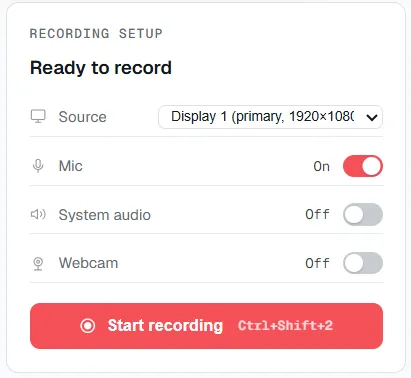
Full screen as the source, the two sound switches set independently, and the camera switch — all set before you press record.
Point the recorder at the whole display rather than a single window, so nothing at the edge of the session gets clipped out.
Turn on system audio to capture what the screen is playing, and separately turn on the microphone if commentary is part of the take.
The webcam is its own switch, on or off, independent of whichever audio switches are set.
Press record and the take saves as MP4 with H.264 video and AAC audio, encoded on the graphics hardware.
Supported on
Windows 10 (1809+) · Windows 11 · x64 · ARM64
Yes — the full-screen capture source takes the entire display, which is what a full-screen session occupies.
Yes — system audio and the microphone are independent switches, so either can be set without changing the other.
Yes — recording uses hardware-accelerated H.264 encoding rather than encoding done entirely in software.
No — the floating widget excludes itself from every capture and recording it makes, so it never appears in the result.
MP4, with H.264 video and AAC audio — a standard format that opens in any player without converting it first.
$12.49, once.
Buy on Microsoft Store — $12.49